Dragon Fury on Mobile: Browser and Login Guide
Dragon Fury Team · October 10, 2026
Access Dragon Fury through your phone browser. Learn which login to use, how to open the game, and what to check if a mobile tab or launch does not work.
On a phone, opening a game may move you from the DragonFury.us dashboard into another browser tab. Keep the website account, selected platform and new tab straight: the screen that opens determines which login details and balance you need.
Recognise the mobile website login
The image below shows the website form at phone width. It has Email or username, Password and Forgot password? controls. Open Sign In in your phone browser and check that those fields belong to dragonfury.us before using your website account.
A later game tab can ask for different login details. This public screenshot does not show a signed-in dashboard or a game password.
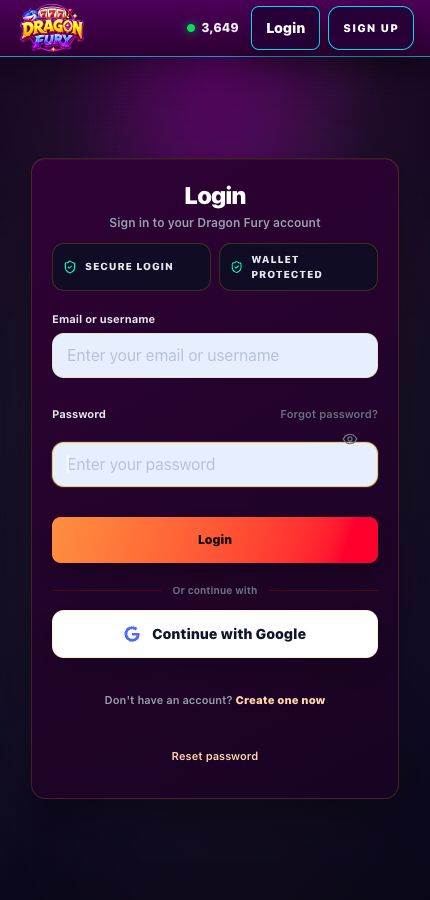
Original mobile website screen, captured October 10, 2026. Select the image to view it at full size.
Begin in your phone’s browser
- Open DragonFury.us in your phone’s browser.
- Select Sign In for an existing account or Sign Up if you need a website account.
- Open Games and find the Dragon Fury platform card.
- Read its current account status. Follow setup instructions if a game account has not been created.
- Open the game using that card’s launch control.
Keep the website tab available while you check account instructions or payment status. Your website account manages your main wallet and connected game accounts; it does not make all game passwords interchangeable.
When the phone shows a second sign-in screen
DragonFury.us is your website account. Dragonfury.club is the separate game destination. If the game asks for login details, use the details issued for the Dragon Fury game account rather than assuming your website password applies.
Read the Dragon Fury login guide if you are unsure which account you need. A website password reset does not confirm that the game password changed.
Look for the browser’s blocked-tab notice
Some browsers block a new tab or window. If the launch control appears to do nothing, check for a browser notice and allow the intended game page when you recognise the destination. Avoid opening repeated launch attempts while you are still checking the first one.
If a game’s own page asks you to rotate the device, follow that instruction. The controls and orientation requirements belong to that game version, so this guide does not promise that every title behaves identically on every phone.
Returning from checkout on a phone
Use the wallet screen to review the selected package, provider, and supported payment options. Confirm a payment’s recorded outcome before making a second request. The game card’s balance and your main website wallet are separate.
If you choose to transfer funds, check the source, destination, amount, and status. Changing browser tabs or returning from checkout is not proof that a payment or transfer completed. See the wallet guide for the different balance actions.
Browser access versus an app request
The browser route described here does not require this guide to supply an app file. We are not publishing a download link that has not been verified for this platform. If your account instructions require an application, confirm the source with support before installing it or entering login details.
A search result using the Dragon Fury name is not enough to identify an authorised download. Our support team can help distinguish the website, game destination, and account instructions associated with your account.
Describe the phone and the tab behaviour
Include your phone model, browser, the screen where the failure occurred, the time, and the exact error. A screenshot with private details covered can help. Never include passwords or verification codes.
Start with game-launch troubleshooting for an opening problem, or website sign-in troubleshooting if you cannot reach your dashboard. For other topics, use the guide directory.
Frequently asked questions
Do I use my website password in every game tab on mobile?
No. A separate game destination can ask for the credentials issued for that platform. Return to its website account card to identify the correct details.