Wallet Payments: Packages, Providers and Payment Status
DragonFury Team · October 10, 2026
Review packages and checkout, identify the recorded outcome, and avoid repeating an unclear payment.
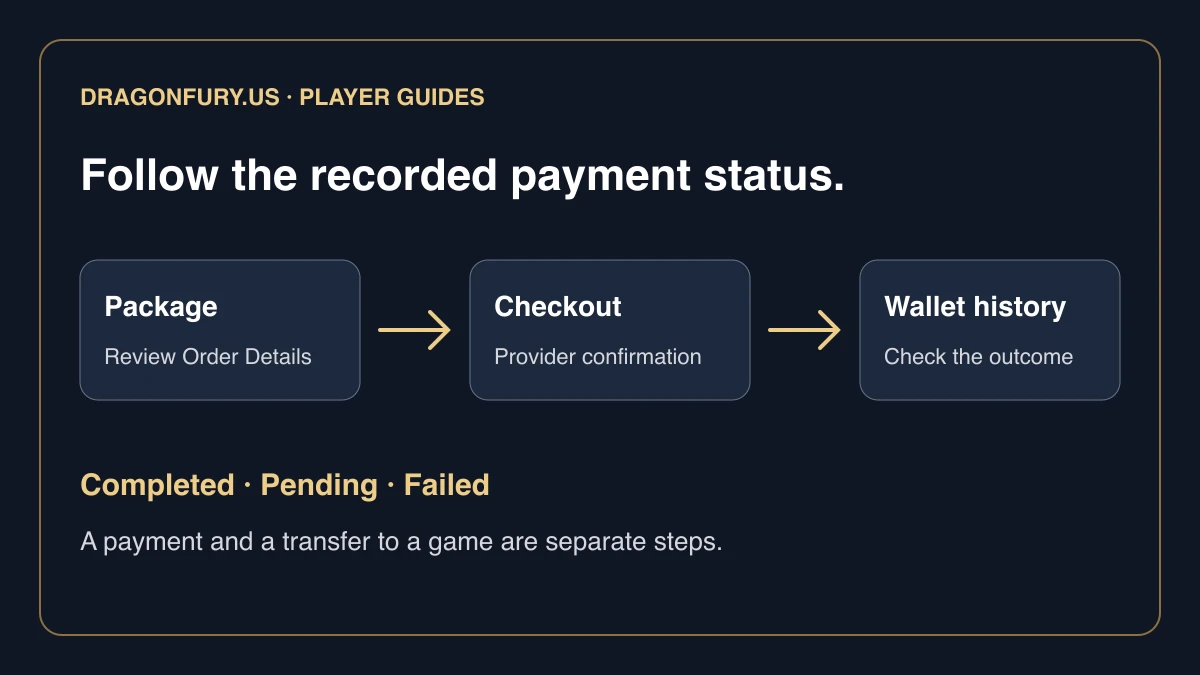
If checkout closed or showed an error, check the existing payment record before starting again. A browser redirect is not the same thing as a confirmed wallet purchase. This guide follows the order from its package price to its recorded outcome.
Find the published answer for a missing payment
Open Support and FAQ, find Payment information, and expand What should I send if my payment does not show? The answer asks you to confirm a completed status before sending the relevant payment details.
The screenshot is the public help answer, not a checkout receipt or evidence that a payment was made. For an unclear or pending result, follow the status guidance in this article and keep the existing reference.
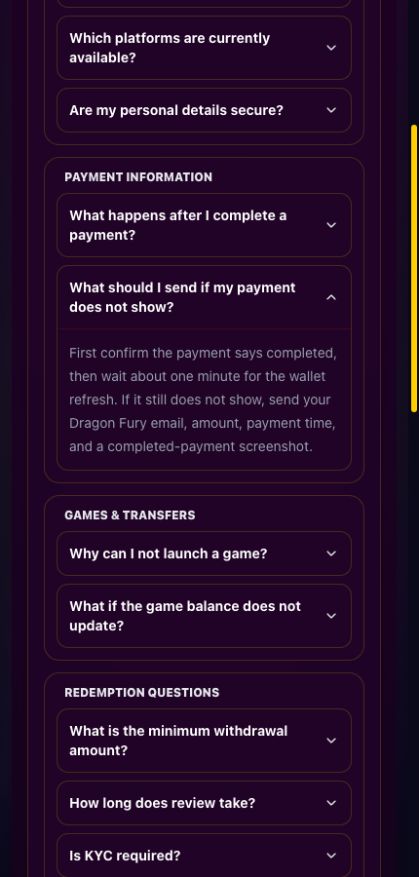
Original support FAQ, captured October 10, 2026. A completed-payment refresh estimate is not a guaranteed checkout processing time. Select the image to view it at full size.
Read Order Details before leaving for checkout
- Open Wallet and choose a package.
- Review Order Details: total SC, original price, discount, and the price you will pay.
- If you have a promo code, apply it and review the updated order before continuing.
- Choose the payment provider offered for that package.
- Choose an available payment method and continue to the provider’s checkout.
- Return to Wallet and check the recorded payment status and main wallet balance.
A package’s SC total and its purchase price are different fields. For example, the welcome package shown at $9.99 can include a promotional SC total. Read the actual Order Details for the package you selected rather than treating the SC number as the charge amount.
Provider choices follow the selected package price
The standard package selector currently uses these amount bands:
| Selected package price | Provider choices |
|---|---|
| Below $9.99 | DollarPay and Pay2Load |
| $9.99 and above | OnePay and Pay2Load |
These are the website’s selection rules checked on October 10, 2026. A provider choice does not establish that every payment method is available for every amount, device, or session. Use the options actually offered for your selected order.
For Pay2Load, the website asks you to confirm the payment method on Pay2Load’s checkout. The method available there is the one to review before submitting payment. A tile on our website should not be treated as proof that the hosted checkout has already selected that method.
Use the status, not the browser redirect
| What you see | What to check next |
|---|---|
| Completed | Confirm the main wallet balance and the transaction amount. A completed purchase does not itself transfer SC to a game. |
| Pending | Keep the existing reference. Refresh the recorded status before creating another payment. |
| Failed | Read the message and check whether the payment provider recorded a charge or another outcome. Ask support if the records disagree. |
| No confirmed outcome after an error | Check wallet history and the provider’s record. The error alone does not establish whether money moved. |
The words on a provider’s checkout can differ from the website’s status labels. Preserve both the website reference and any provider reference if you need the records checked.
Two errors that need an existing-order check
A temporarily busy message concerns the request or service at that moment. An unavailable-method message can concern the selected amount or method. Neither message is a reason to keep clicking through new payment attempts without checking the first request.
Return to your existing order and wallet history. If the first attempt has a confirmed failed outcome, follow the available options for a new attempt. If its outcome remains unknown, ask support to check the reference before paying again. Do not assume a different provider will recover or cancel the original request.
A completed purchase credits a different balance
First identify which balance changed. A wallet purchase credits the main website wallet when confirmed. A separate transfer funds a selected game or provider account.
For a provider such as Pragmatic or Habanero, open the intended game preview and check the balance available for that provider. The provider wallet guide explains Add funds, returns, and their recorded statuses. For connected platforms such as Juwa or Dragon Fury, use the instructions on that platform card.
Keep both transaction references
Include your website username, selected package price, provider and payment method, approximate time, exact error, and non-secret transaction references. A screenshot with private payment information covered can help.
Do not send a full card number, security code, password, or verification code. Use support for an for your account check. The wallet overview connects purchases, game transfers, provider returns, and redemption.
Frequently asked questions
Does returning from a payment provider prove my purchase completed?
No. Check the recorded payment status and main wallet balance. If the outcome remains unclear, retain the existing order reference and have it checked before paying again.