Provider Wallets: Add Funds, Balances and Returns
DragonFury Team · October 10, 2026
Understand the two balances in a game preview and follow provider transfers or return requests.
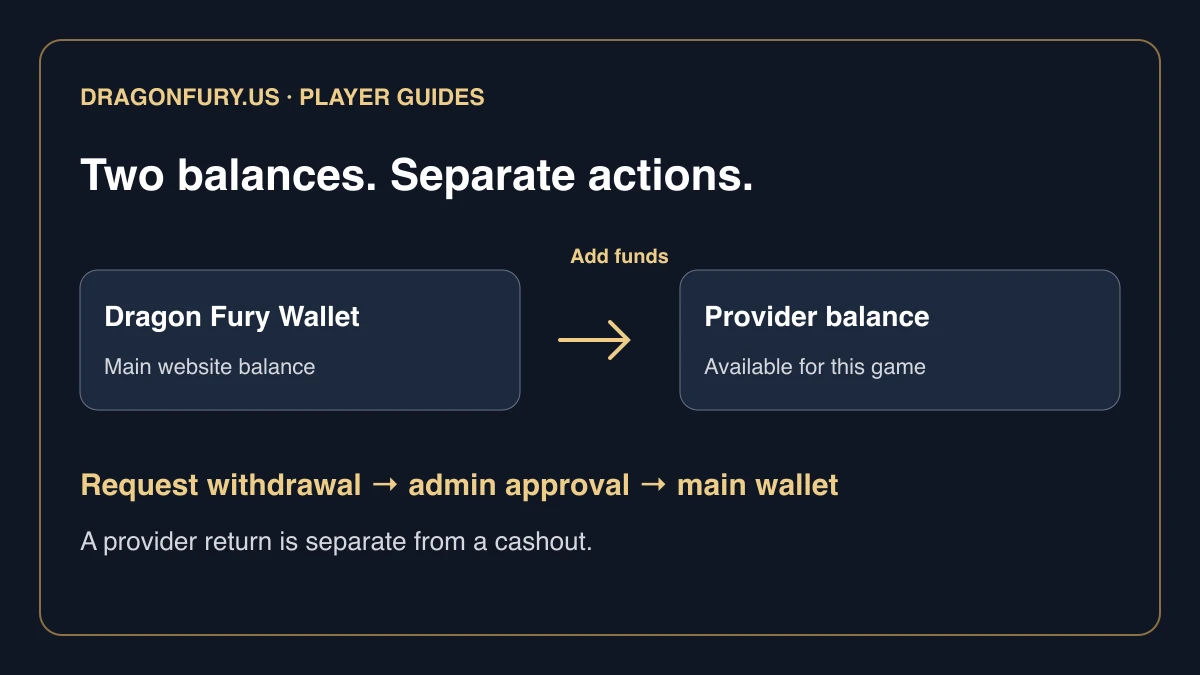
In a provider game preview, Dragon Fury Wallet and Available for this game identify separate balances. Add funds moves toward the selected provider; Request withdrawal requests a return to the main wallet and requires admin approval. Neither label means a cash redemption has completed.
Open the balance-help answer
On Support and FAQ, look under Games & transfers and expand What if the game balance does not update? The public answer recommends one Games-page refresh, followed by a support report if the display still looks wrong.
Keep the provider and transfer reference with that report. The screenshot does not display a private balance or prove that a particular transfer completed.
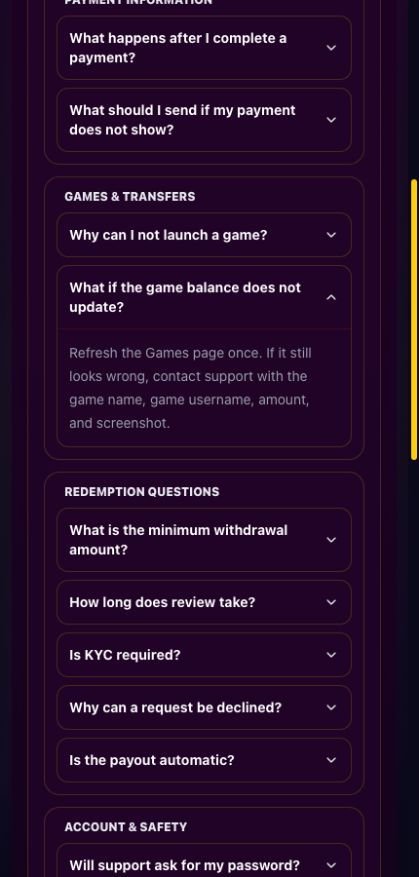
Original balance-help screen, captured October 10, 2026. No transfer or return was submitted. Select the image to view it at full size.
What each preview label tells you
| Preview label | What it identifies |
|---|---|
| Dragon Fury Wallet | Your main website wallet balance. |
| Available for this game | The balance checked for the selected provider entry. |
| Not set up | The selected provider account has not yet completed setup. |
| Unavailable | A balance could not be confirmed. Do not treat this as a confirmed zero. |
Check the provider name beneath the game title. Similar game names can exist under different cards, so a remembered title is not enough to identify the balance you need. For example, the catalogue lists Fortune Gems names under JILI and TADA as separate entries.
Not set up and Retry account check are different states
Sign in, open Games, choose the provider and select a game card. If the preview shows Set up provider account, follow that action and wait for the recorded outcome. If it shows Retry account check, the check failed; use that control rather than assuming the account does not exist.
The preview can show a separate minimum-balance requirement before Play now becomes available. Read the current message. An account setup result and a funds transfer result are different steps.
Check the destination before Add funds
- Check the game title and provider in the preview.
- Confirm the main wallet and provider balances have loaded.
- Choose Add funds.
- Review the transfer destination and amount before submitting.
- Wait for the recorded result and refresh balances if needed.
Do not repeat a transfer solely because a balance check is slow. If the outcome is unclear, retain the request reference and have the existing movement checked. A browser tab opening successfully does not confirm a wallet movement.
Follow the return through its recorded statuses
Choose Request withdrawal in the same provider preview. This action requests a return from that provider; it does not immediately complete a cash redemption. The request list below the preview shows the recorded progress.
| Request status | Meaning shown by the website |
|---|---|
| Awaiting admin approval | The request is pending review. |
| Processing — do not resubmit | The existing request is being handled. |
| Awaiting provider confirmation | The result needs confirmation before the return can be resolved. |
| Credited to main wallet | The recorded return completed. Check the main wallet balance. |
| Rejected | The request was rejected. Read the message or ask support about that reference. |
| Not completed | The recorded request failed. Check its outcome before starting another. |
There is no universal completion time stated by this guide. Follow the recorded request status and ask support about a specific pending reference instead of assuming that a fixed number of minutes has passed.
Credited to main wallet is not cashout approval
A completed provider return credits the main website wallet. A cashout or redemption is a separate request governed by the current account rules. The wallet overview explains the different money movements; the rules guide points to the relevant terms.
A failed lookup does not erase a request
Use Refresh provider balance or the displayed retry action. If the withdrawal-request list cannot load, refresh it before submitting another request. A failed lookup is not evidence that an earlier request disappeared.
For support, include the provider, title, requested amount, time, reference, and exact status or error. Keep passwords and verification codes private. To find a different provider’s catalogue, use the provider directory.
Frequently asked questions
Does Unavailable mean my provider balance is zero?
No. It means the balance could not be confirmed. Use the displayed refresh or retry action and check the existing record before making another transfer.